![Katmai-Main-Logo-Horizontal.png]](https://katmaitech.com/hs-fs/hubfs/migration/brand/Katmai-Main-Logo-Horizontal.png?height=27&name=Katmai-Main-Logo-Horizontal.png)
Katmai is designed to run smoothly across a wide range of machines, from high-performance laptops to more locked-down enterprise devices. To ensure the best experience, Katmai offers multiple performance settings that balance visual quality with system efficiency.
If you notice lag, stuttering, or reduced responsiveness, adjusting your performance setting is the fastest way to improve stability.
Performance Settings Overview
Katmai offers several performance modes to match different hardware capabilities:
-
Enhanced
Best starting point for powerful machines.
Examples: MacBook Pro (Silicon), Dell XPS 15/16, high-end workstations.
Recommended 16GB and above, with dedicated GPU -
Balanced — Default
Best starting point for most modern computers.
Examples: MacBook Air, Dell XPS 13, ThinkPad X1 Carbon, Surface Laptop. -
Efficient
Try this on older machines or when you want Katmai using fewer resources.
Examples: Intel MacBook Air/Pro, Dell Latitude, ThinkPad T-series, HP ProBook. -
HyperLite
Start here on older or lower-powered machines, or whenever you want the lightest live Katmai experience.
Examples: older Dell Latitudes, ThinkPads, EliteBooks and entry-level laptops.
If you’re unsure which to choose, start with Balanced. If performance issues persist, move to HyperLite.
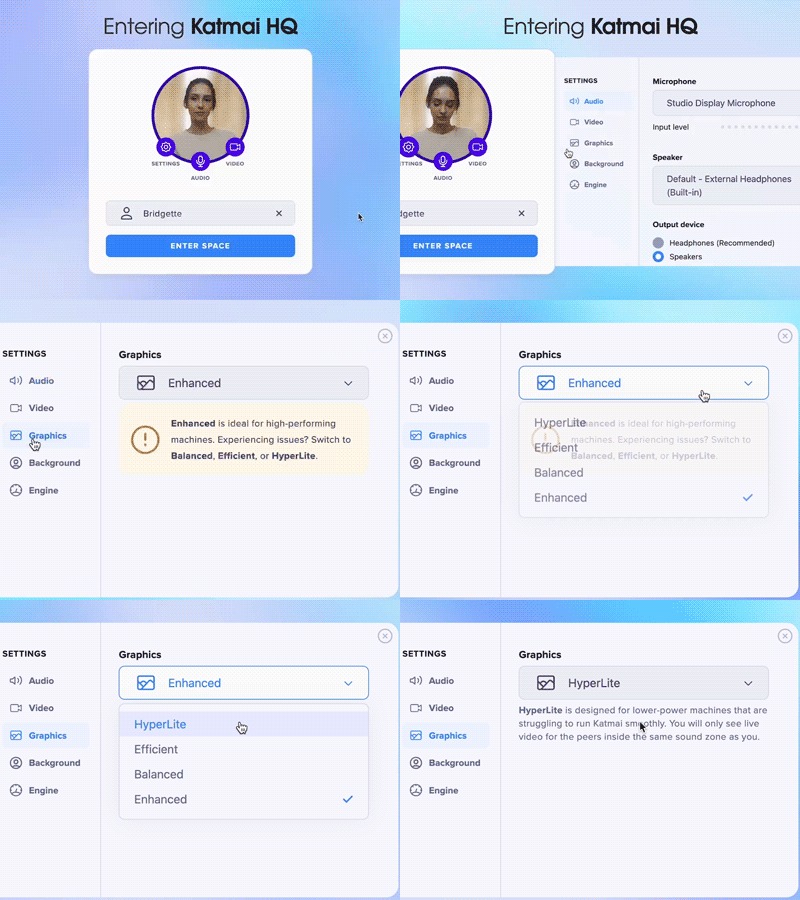
Adjusting Your Performance Setting Before Entering Katmai
You can select your performance setting on the login screen (see above):
- Open Katmai and sign in
- Below your display name, locate the Performance dropdown
- Select the mode that best fits your machine
- Enter Katmai
This is the recommended approach if you know your device may be resource-constrained.
Adjusting Performance While Inside Katmai
You can also change performance settings at any time during a session:
- Click the Settings icon in the upper-right corner
- Open the Performance dropdown
- Select a different mode
- The change applies immediately, no restart required
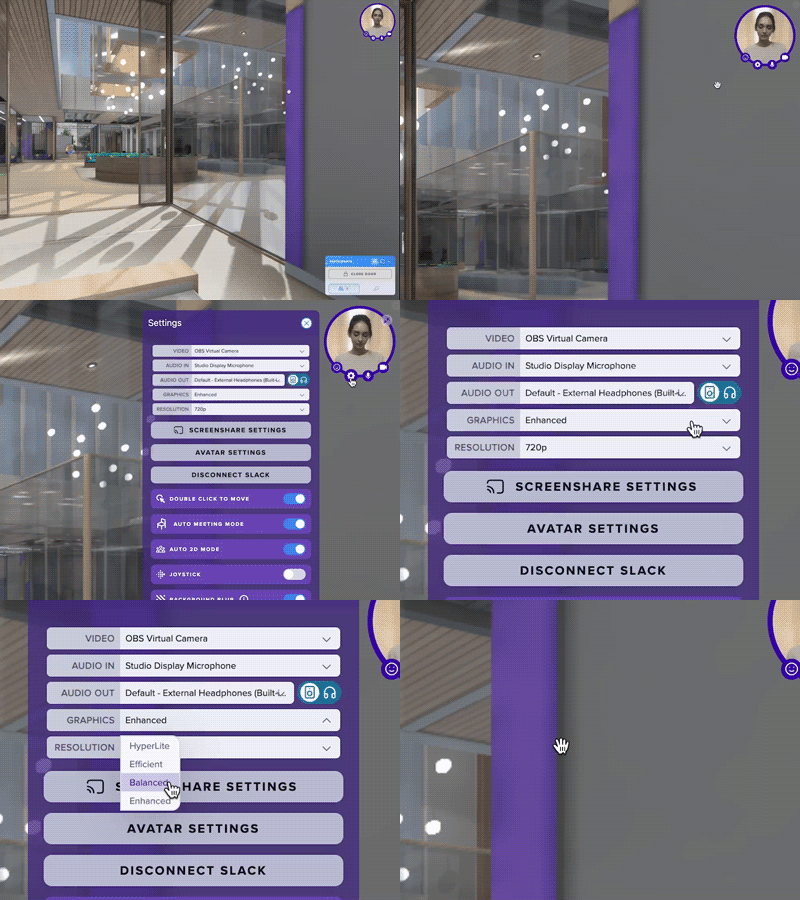
This makes it easy to adjust if you notice issues mid-session.
Choosing the Right Setting for Enterprise Devices
For large organizations with mixed hardware environments:
- If your laptop is company-managed or older, start with Efficient
- If you experience freezes or audio issues, switch to HyperLight
- If everything feels smooth and responsive, you can remain in Balanced
- Only use Enhanced if you’re confident your machine has strong graphics support
Performance settings are per-user and can be adjusted at any time.
Still Experiencing Issues?
If performance problems persist after adjusting settings:
- Make sure your browser is up to date
- Close other heavy applications or browser tabs
- Contact your organization’s Katmai administrator or the Katmai support team
We’re happy to help troubleshoot and ensure a smooth experience.