![Katmai-Main-Logo-Horizontal.png]](https://katmaitech.com/hs-fs/hubfs/migration/brand/Katmai-Main-Logo-Horizontal.png?height=27&name=Katmai-Main-Logo-Horizontal.png)
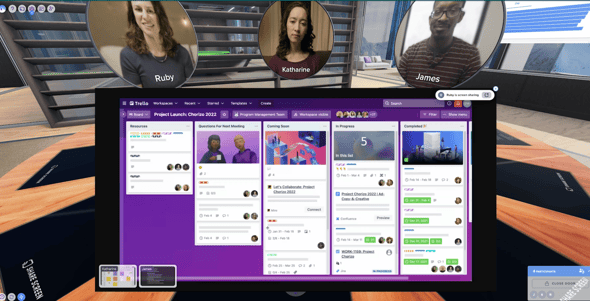
Nearly every room in Katmai has the option to share your screen, and you can share multiple screens at once.

How to Start Sharing
-
Click a Screen: While in one of your spaces, just click on any visible screen (located on the desks and walls) to begin sharing.
-
Use the Icon: Alternatively, you will find a "Share your screen" icon in the top left corner. This will automatically connect you to the nearest shareable screen in your space.
Choosing What to Share
You have different options to show your screen in Katmai - you can display your entire screen, a window, or a tab.
-
A Tab: By choosing to share your tab, you’ll only show a single browser tab. This is the most limited, and so the least likely to share accidental information. If you want to share the audio from a browser tab, select this option and don't forget to toggle "Also share tab audio."
- A Window: When you choose to share your window, you’ll select a specific application to display, and viewers will be able to see as you switch tabs within that window. This is good for if you’re moving between a few different tabs in your browser.
-
Entire Screen: When you share your entire screen, your colleagues can see everything on your computer – windows, applications, notifications.
Viewing Options
-
In-Game View: Your share will pop up for you in-game, the same as it will for others in your meeting – and you can all re-size that screen, as needed.
-
Auto-Tilt: When someone shares their screen, your view will automatically tilt to see both your meeting members and the shared screen. To turn this feature off, head to your Settings button in the top right corner next to your Confidence Monitor (camera feed).
-
Pop Out: Want to view the screen-share in a separate window? Just hit the "Pop Out" icon in the top right corner of the screen share window.
-
Multiple Screens: When more than one person is sharing, you can see all the screens being shared at the bottom left corner, including the names of the users doing the sharing.
Stop Sharing
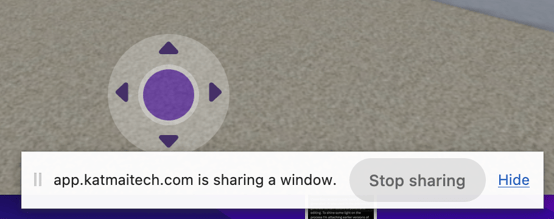
To stop sharing, simply click the “Stop sharing” button at the top or bottom of your browser window.
Still need help? Contact us at support@katmaitech.com.