![Katmai-Main-Logo-Horizontal.png]](https://katmaitech.com/hs-fs/hubfs/migration/brand/Katmai-Main-Logo-Horizontal.png?height=27&name=Katmai-Main-Logo-Horizontal.png)
If your space won't load, the issue is usually caused by missing browser permissions, a blocked connection (VPN/Firewall), or a graphics setting. Find the symptom that matches your screen below.
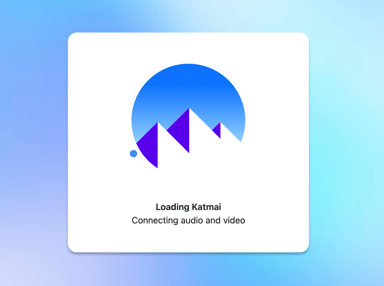
Stuck on "Connecting audio and video"
If the progress bar freezes or you see a "Loading Katmai" message that never goes away, your browser is waiting for permission or a network connection.
-
Check Camera & Mic Permissions The browser will not load the space until you grant access to your devices.
- Look for the "Allow" prompt in the top left corner.
- Check the Lock Icon: Click the lock icon in your address bar and ensure Camera and Microphone are toggled On.
- Disable VPNs and Firewalls Katmai does not currently support access through most VPNs or strict corporate firewalls.
- Disconnect your VPN and refresh the page.
- Workaround: If you are blocked by a corporate office network, try tethering to a mobile hotspot to bypass the firewall.
- Disable Ad Blockers Some ad blocking extensions mistakenly flag the 3D engine as an "ad" and block it from loading.
- Pause your ad blocker for
katmaitech.comor disable the extension entirely.
- Pause your ad blocker for
- Check Internet Speed A slow connection can cause the load to time out. We recommend:
- Download: 100 Mbps or higher.
- Upload: 10 Mbps or higher.
- Test your speed here: Cloudflare Speed Test.
Black Screen, White Screen, or WebGL Errors
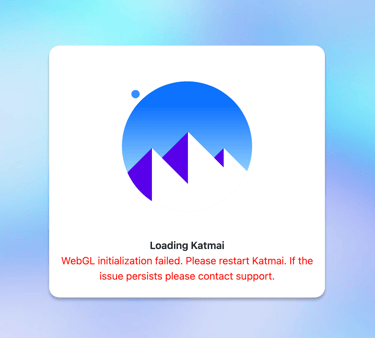
If your space loads to 100% but the screen remains black, white, or stuck, your browser is likely failing to access your computer's graphics card (GPU).
You might see a specific error message like the one below, or simply a blank screen.
Even powerful computers (like M1 Macs) will fail to render Katmai if browser settings block GPU access. Follow these steps to force the browser to render the 3D environment.
1. Enable Hardware Acceleration
This is the most common fix. If this setting is off, your browser attempts to run a high-fidelity 3D world using only your CPU, which will result in a black screen or a crash.
For Chrome, Edge, and Brave:
- Open Settings (click the three dots in the top right corner).
- Select System (or "System and Performance") from the sidebar.
- Toggle On "Use graphics acceleration when available" (or "Use hardware acceleration").
- Click Relaunch to apply the changes immediately.
For Firefox:
- Open Settings and search for "Performance."
- Uncheck "Use recommended performance settings."
- Check "Use hardware acceleration when available."
2. Free up GPU resources
Katmai runs in a 3D engine that requires dedicated graphics power. If you have too many tabs open (we see you with those 50 tabs), your browser may run out of GPU memory.
- Close unused tabs and windows.
- Restart your browser completely to clear the "WebGL context."
- Open Katmai in a single, fresh tab.
3. Force a hard refresh
Sometimes the browser holds onto old cached data that prevents a successful load.
- Mac: Press Cmd + Shift + R.
- Windows: Press Ctrl + F5.
4. Verify WebGL Support
If the issue persists, ensure your browser technically supports the 3D engine.
- Visit get.webgl.org.
- Check the result: You should see a spinning cube. If you don't, your browser or IT policy is likely blocking WebGL entirely.
- If you don't see the cube, your browser or IT policy is likely blocking WebGL entirely.
Need more help? If you see a spinning cube on the test site but still can't load Katmai, take a screenshot of your results on webglreport.com and send it to support@katmaitech.com.