![Katmai-Main-Logo-Horizontal.png]](https://katmaitech.com/hs-fs/hubfs/migration/brand/Katmai-Main-Logo-Horizontal.png?height=27&name=Katmai-Main-Logo-Horizontal.png)
By default, Windows can limit the availability of your connected devices, such as webcams and microphones to one application at a time. Katmai can stall on loading if Windows is does not provide access to the hardware.
This can happen if you already have another video conferencing application open at the same time, such as Teams, Zoom, or Meet.
To resolve this, you need to adjust Windows settings in two places - one for the camera and one for the microphone.
System
- Click Start -> Settings -> "Windows Update"
- Confirm that your Windows 11 version is 24H2 or later.
Camera:
- Open up the settings for your camera:
Start -> Settings -> "Bluetooth & Devices" -> "Cameras" -> select <Your camera>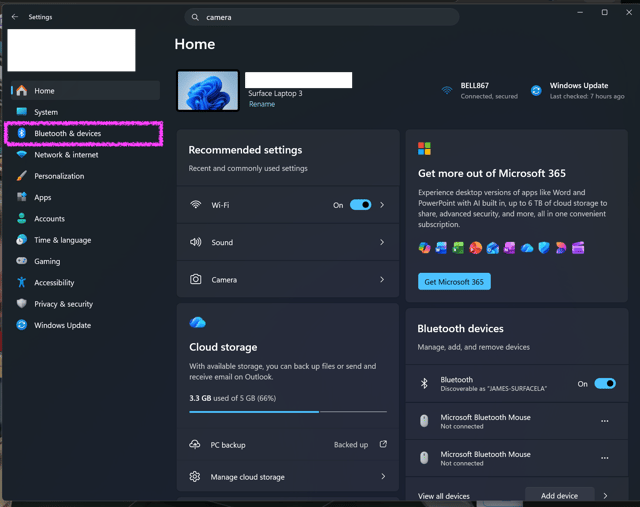
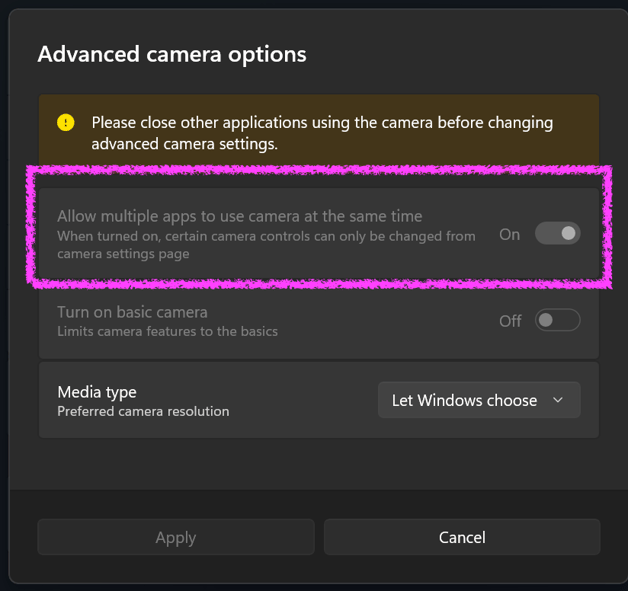
- Find "Advanced Camera Options"
- Toggle "Allow multiple apps to use camera at the same time" into the ON position
Microphone:
- Open the sound panel:
Start -> type mmsys.cpl, click OK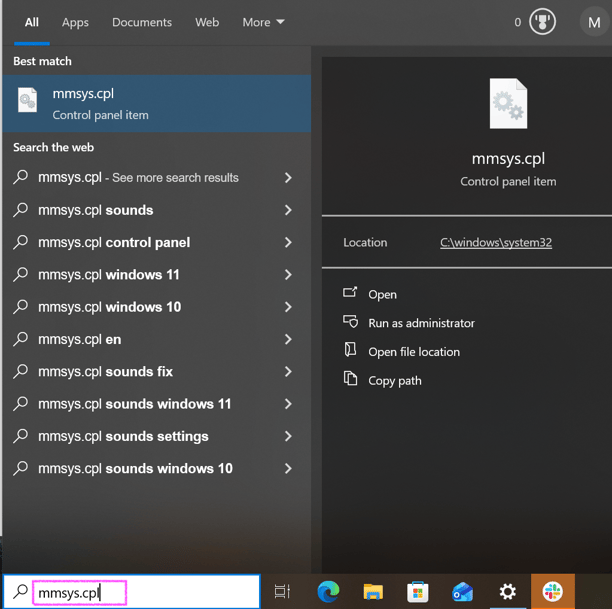
- Go to the "Recording" tab, select your microphone, click "Properties"
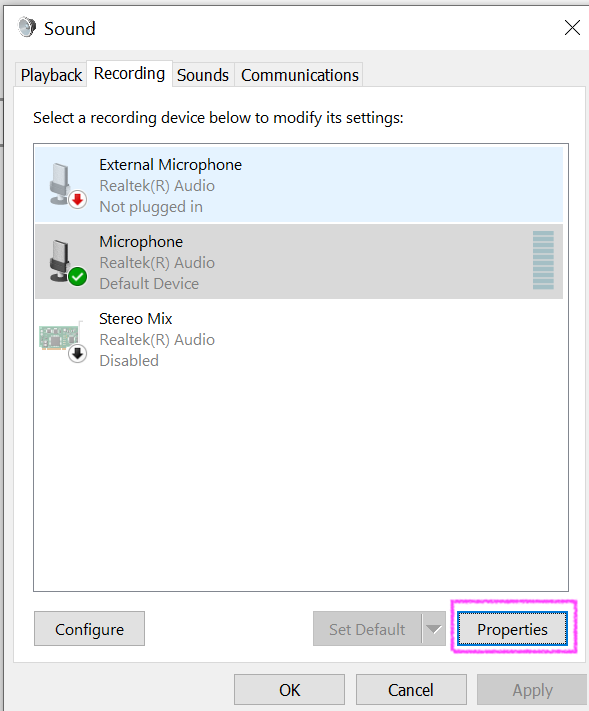
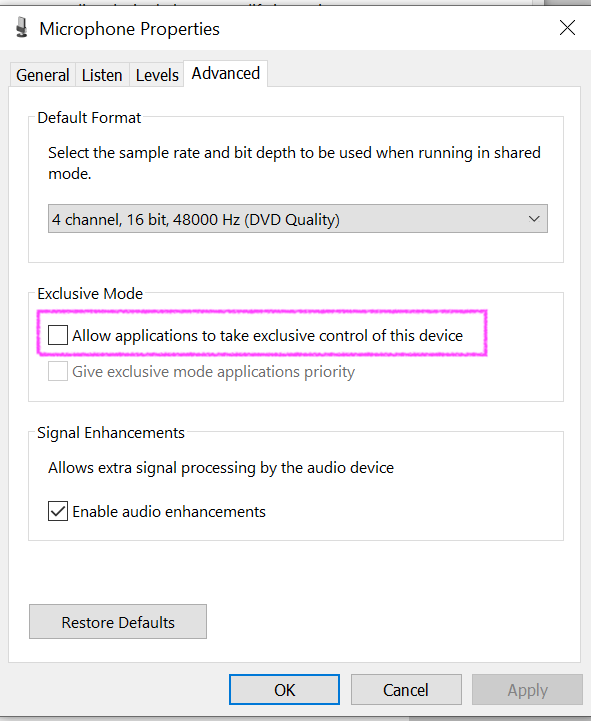
- Go to the "Advanced" tab and deselect "Allow applications to take exclusive control of this device" and click "Apply"