![Katmai-Main-Logo-Horizontal.png]](https://katmaitech.com/hs-fs/hubfs/migration/brand/Katmai-Main-Logo-Horizontal.png?height=27&name=Katmai-Main-Logo-Horizontal.png)
Before You Troubleshoot: Try These Quick Fixes
Before diving into specific settings, make sure you have covered the basics:
-
Use Google Chrome: If you aren’t using Chrome, try switching to Chrome.
-
Update Your Browser: If you are already using Chrome, check for any available browser updates.
-
Refresh Your Window: Try refreshing your page through the browser.
-
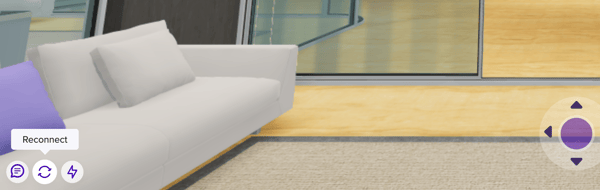
Reconnect: Click the “Reconnect” button on the bottom left of your screen next to the chat button.
I Can't Share My Screen
If you run into trouble trying to share, check the following:
-
Check Your Location: Make sure you are located in a place where screen sharing is enabled (for example, a conference room rather than a hallway).
-
Update Computer Permissions (Mac users only): If, when sharing your screen, you see “Preview Unavailable” or another alert indicating that you cannot share your screen, you’ll need to update your browser’s permission settings.
-
For Mac users, open your System Preferences menu and click on Security & Privacy.
-
From the Security & Privacy menu, select Screen Recording.
-
Check the box next to the web browser being used to run Katmai.
-
You may need to restart Chrome once you’ve updated the security settings.
-
I Can't See a Screen Being Shared
If someone else is sharing but you are having trouble viewing it:
-
Check Your Internet Speed: Run the Cloudflare Internet Speed Test. If it shows that you have poor internet speed on Wi-Fi, try connecting via ethernet or change to a different network if possible.
-
Turn Off Wi-Fi: When using a wired connection, make sure Wi-Fi is turned off.
-
Verify Hardware Compatibility: Make sure you are using hardware from ~2017 or newer.
Still need help? Contact us at support@katmaitech.com.
Katmai offers you multiple ways to share your screen. Should you run into trouble, follow these troubleshooting steps:
- Are you in a sound zone with an available screen share? Make sure you are located in a place where screen sharing is enabled (for example, a conference room rather than a hallway).
- If you can see the screen sharing button but cannot click on it, use the "reconnect" button in the bottom left of your screen to update your connection.
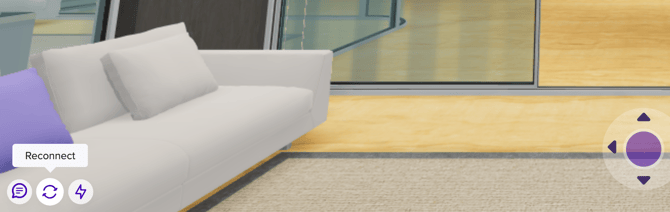
- If reconnecting doesr not work, try refreshing your page through the browser.
- If, when sharing your screen, you see “Preview Unavailable” or another alert indicating that you cannot share your screen, you’ll need to update your browser’s permission settings. Here's how:
- For Mac users, open your System Preferences menu and click on Security & Privacy. (Note: Windows users, contact Katmai support at support@katmaitech.com if you reach this stage of troubleshooting and are unable to continue.
- From the Security & Privacy menu, select Screen Recording.
- Check the box next to the web browser being used to run Katmai. If the above process does not work or you’re a Windows user, please contact Katmai support.
- You may need to restart Chrome once you’ve updated the security settings.
Still need help? Contact us at support@katmaitech.com.