![Katmai-Main-Logo-Horizontal.png]](https://katmaitech.com/hs-fs/hubfs/migration/brand/Katmai-Main-Logo-Horizontal.png?height=27&name=Katmai-Main-Logo-Horizontal.png)
In Katmai's default 3D View, avatar discs can begin to overlap when many people gather in the same sound zone. When that happens, you can switch to 2D View so every participant remains visible.
Switching between 3D View and 2D ViewYou can change views at any time using the toggle at the top of the screen.
Choose:
- 3D View for the standard spatial office experience.
- 2D View for a clean, organized layout that's easier to follow during larger conversations.
Switching views only changes how the conversation appears on your screen. It does not affect the meeting, audio, video, or anyone else's experience.
Auto 2D ViewWhen Auto 2D View is enabled, Katmai automatically switches to 2D View once enough people join a sound zone that the 3D layout becomes crowded.
You can switch back to 3D View at any time using the view toggle.
To enable or disable Auto 2D View:
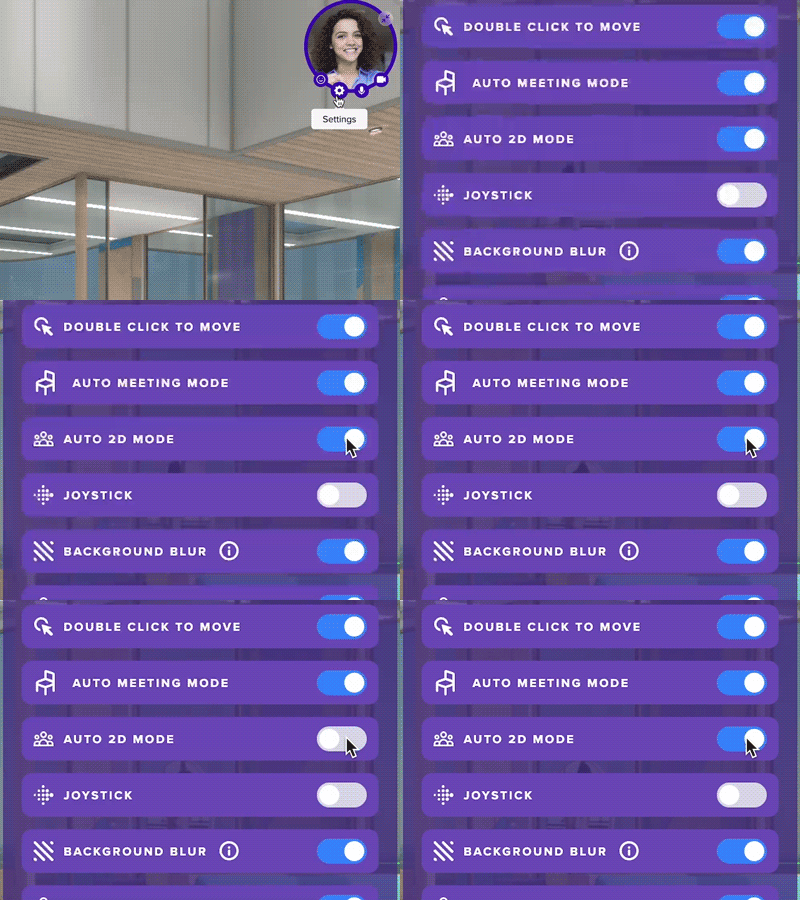
- Open Settings using the gear icon.
- Find Auto 2D Mode.
- Turn the setting on or off.
The change takes effect immediately.
Follow the active speaker
As people speak, Katmai automatically highlights the active speaker by placing them at the front of the layout and displaying their avatar larger than the other participants.
This makes it easy to follow the flow of conversation, even in larger meetings.
Use 3D View when you want the full spatial office experience. Use 2D View when your priority is keeping everyone visible and making larger conversations easier to follow.