![Katmai-Main-Logo-Horizontal.png]](https://katmaitech.com/hs-fs/hubfs/migration/brand/Katmai-Main-Logo-Horizontal.png?height=27&name=Katmai-Main-Logo-Horizontal.png)
This guide covers the following:
- Signing Up for the First Time
- Navigation and Controls
- Your Katmai Dashboard
- Creating and Customizing Your Space
- Inviting Users and Guests
- Keyboard Shortcuts
1. Signing Up for the First Time
If you haven't yet, make sure to sign up for your free virtual office. Go to Visit Katmai to get started or use this link to go directly to the signup page.
Begin the signup process via Google SSO or by entering your email address and hitting "Continue with Email."
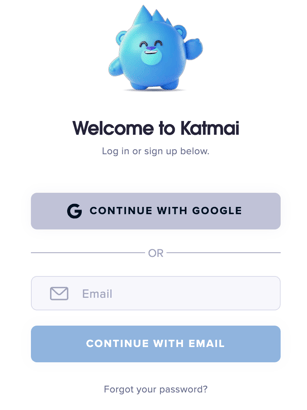
You’ll then receive an email from hello@katmaitech.com – be sure to check your spam folder if it does not appear right away.
-
Click on the "Access Katmai Now" button in the email or visit katmaitech.com.
-
This will land you on the Katmai log-in page. Here, you can see how you’ll appear to others in Katmai. It's also an opportunity to adjust your graphics settings so you can maximize your experience. (For more on performance settings, click here.)
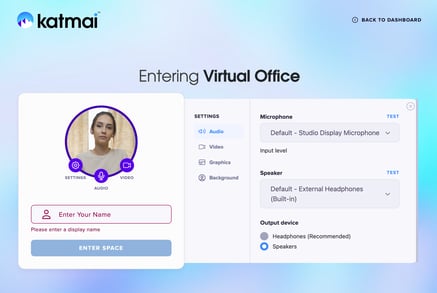
- When you’re ready, type in your name, hit "Enter Space," and you will drop right into a Katmai office.
-
Explore the UI, read the "Tips & Tricks," or just head into the space and start getting a feel for Katmai. (Hot Tip: Skip to Step 5. Inviting Users & Guests as soon as possible -- being together with other people is the essence of Katmai.)
2. Navigation and Controls
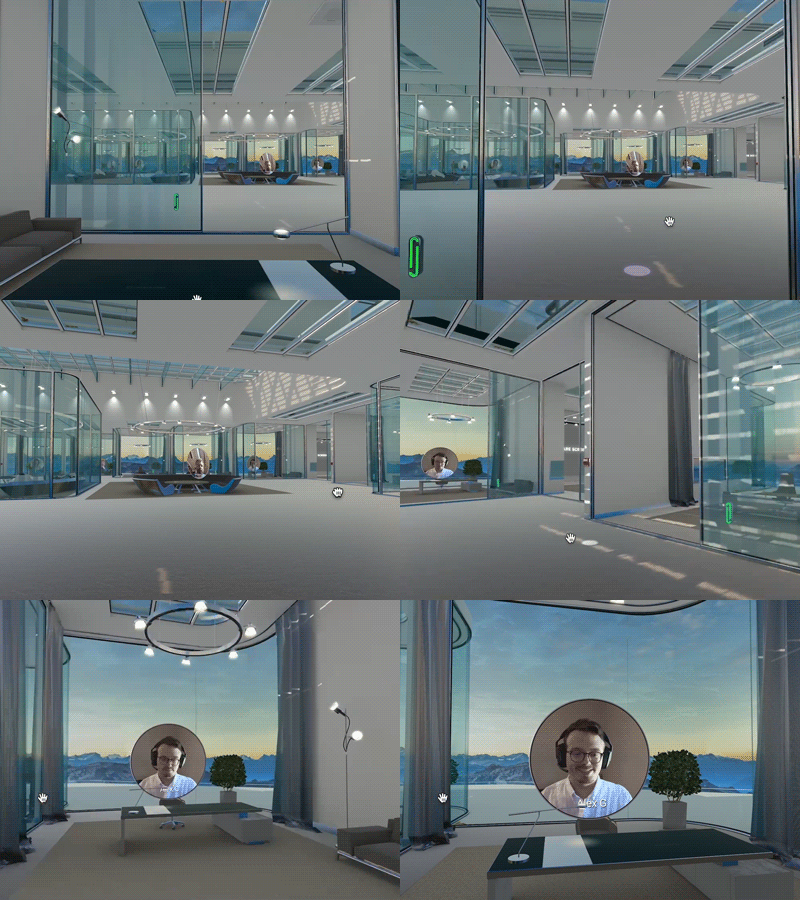
Moving around in Katmai is simple: use your arrow keys, or if you prefer, WASD commands.
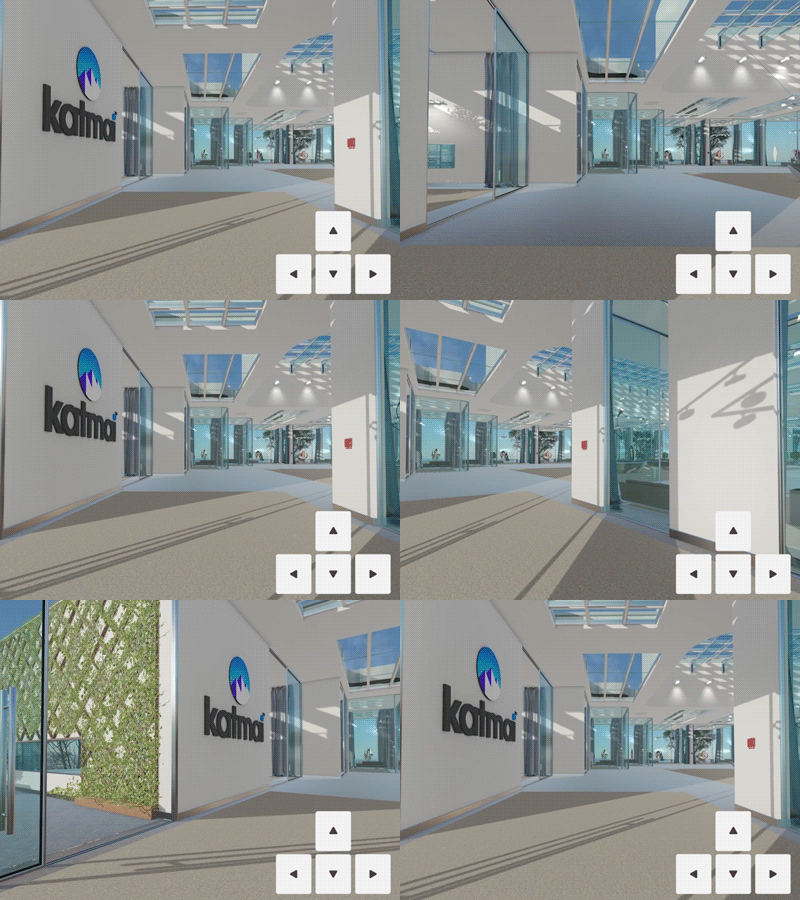
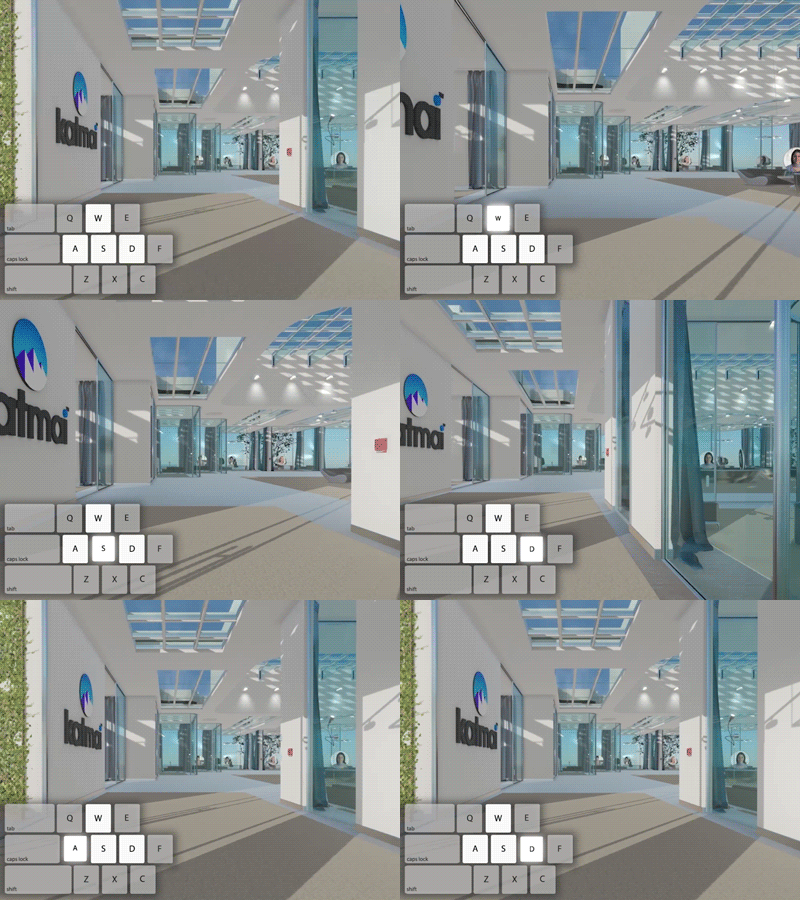
You can also click where you want to travel to using your mouse, or use the joystick tool on the lower center part of the screen.
You can take in the environment by simply left-clicking your mouse and dragging the cursor around.
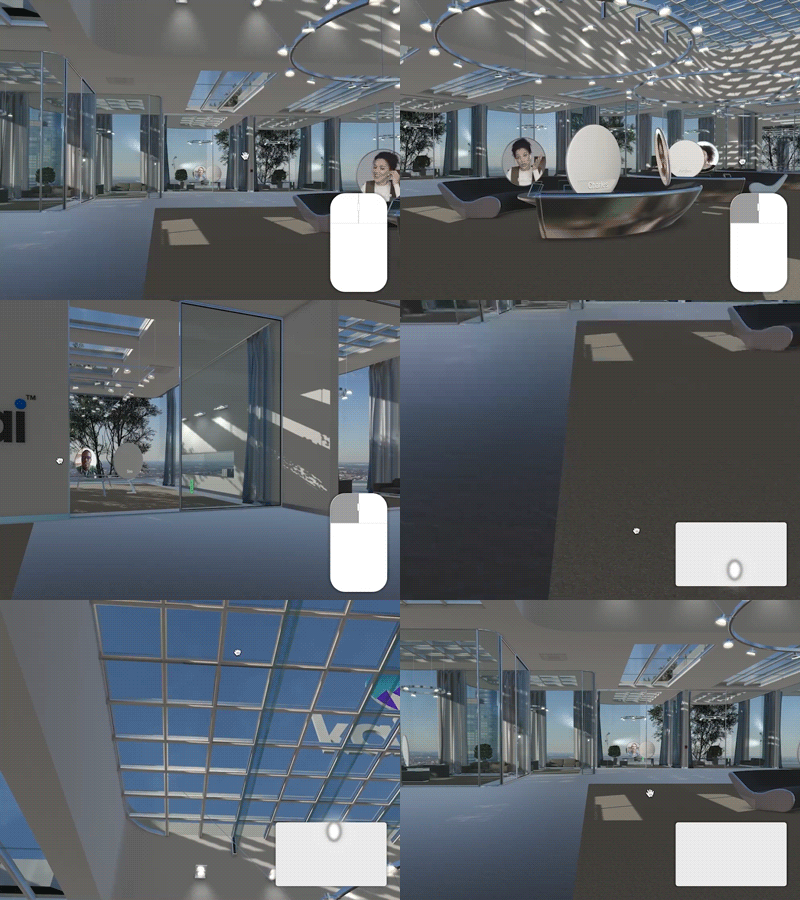
And, just for fun, you can jump by pressing the space bar. (Go ahead. You know you want to try it out. We’ll wait.)
Movement Controls
-
Keyboard: Use Arrow Keys or WASD to move.
-
Mouse: Click where you want to go, or use the joystick tool on screen.
-
Look Around: Left-click and drag the cursor to look around.
-
Jump: Press Space Bar to jump.
-
Exiting a Space: Close the browser or click the Exit Space icon in the toolbar.
📺 Prefer video? Watch this quick tutorial below.
Audio & Video Controls
Easily turn off your video and sound feed with these keyboard shortcuts:
- C: Toggle your self-view on/off.
- M: Mute yourself.
- V: Turn your video on/off.
- Z: Set status to "Away" (turns off camera and mutes audio).
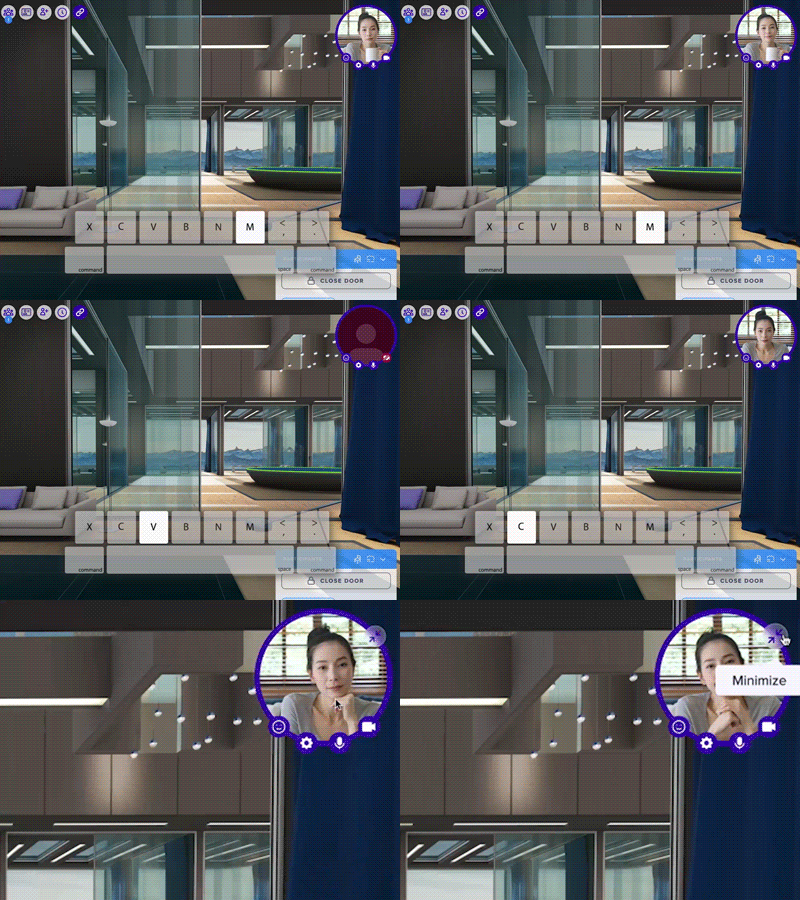
Note: In the top right you'll see your avatar with your live video feed, which we call Self View.
3. Your Katmai Dashboard
The Dashboard is your central hub for spaces, adding and managing users, and guest passes. There are three ways to access your dashboard:
1. Go to app.katmaitech.com/dashboard.
2. Click on "Back to Dashboard" in the upper right corner of the log-in page.
3. If you're already in your Katmai space, click on the Menu button in the upper far left of your window to reveal all menu options, then click "Exit Space."
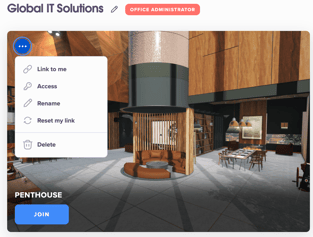
When first arrive at the dashboard, you'll see the four Katmai spaces we've created for you. Jump in and wander around. If you want to make more, carry on to the next step.
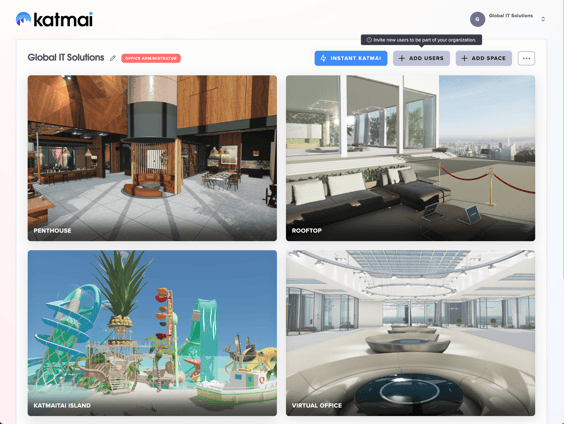
- Virtual Office for work.
- Penthouse for hangouts.
- Rooftop for networking or events.
- Katmaitai Island for fun.
From your Dashboard, you can jump right into a template to explore, rename it, or create a brand new space.
4. Creating and Customizing Your Space
Choose Your Architecture: Click the Add a New Space button in the top right of the dashboard and select a layout. Click on each architecture to preview the number of co-working areas, offices, and conference rooms it includes. When you find one you like, hit "Select & Continue."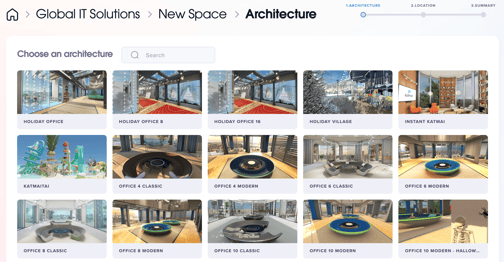
Choose Your View: Select a visual setting like London, New York, the Swiss Alps, or Hawaii. Note: Don't worry too much about debating the perfect location, you can change it later! Have you ever wanted an office in London? New York City? What about Hawaii or the Swiss Alps? We dare you not to lose minutes debating the perfect location for your new space. (It’s okay, you can change it later!) Click on the thumbnail for preview images for each location. When you find one you like, hit "Select & Continue."
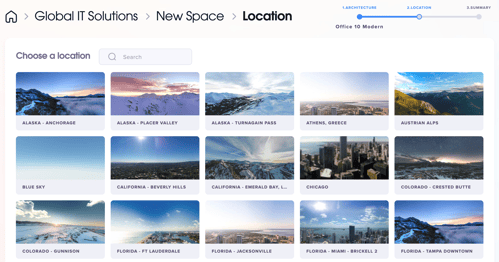
Name Your Space: Type that name in, hit "Create Space," and you're in business.
📺 Want to add custom branding to your space? Watch this quick tutorial below.
5. Inviting Users and Guests
If you build it, they will come (but you do have to invite them first!). Once you’ve created a space, don’t keep it to yourself—start populating your office.
Users vs. Guests: What’s the difference?
- Users (Team Members): People who need anytime access to the space and more controls.
- Guests (Visitors): People who only need temporary access for meetings, interviews, or presentations (like a client or a speaker).
Part 1: Adding Users (Your Team)
The best way to sign your team up is by inviting them directly through your admin account.
⚠️ Important Security Note: All new users must be invited through an existing Admin account. If a user signs up separately without an invite, they will not be able to access your private space.
How to invite users:
- From your Dashboard, click + Add Users.
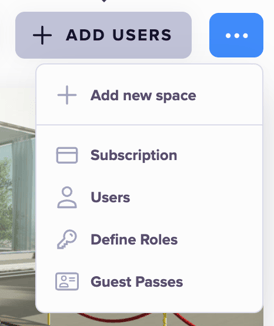
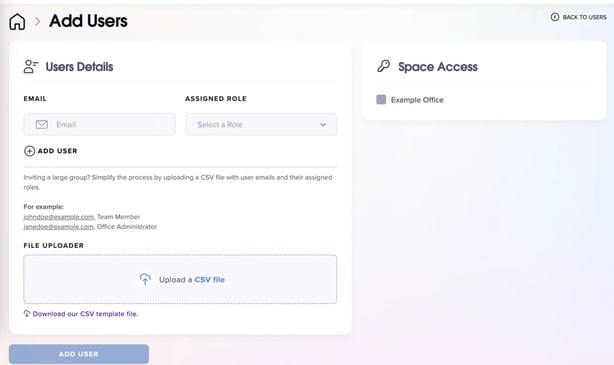
- Enter each user's email address, assign a role, and select the spaces they can access.
-
Optional Bulk Add: If you’re ready to start uploading an entire group of team members, you can upload a CSV file with their email addresses and roles! We even provide a CSV template for you right here.
-
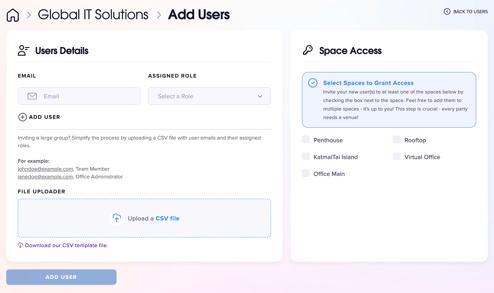
Once invited, they will receive an email. Log in and wait to see them appear—make sure to jump for joy (hit the Space bar) when you spot them!
👉 Pro Tip: Don't forget to assign the specific spaces you want them to access! Otherwise, it's like inviting someone to your building but not letting them past the lobby.
Part 2: Inviting Guests (Temporary Visitors)
Katmai grants you full control over guest passes, allowing you to track status, duration, and access levels.
How to create a guest pass:
- From your Dashboard, click Manage and select Guest Passes.
- Click New Pass.
- Enter the guest's details (Name and Email) and set the Date/Time.
- Hosting a big event? You can upload a CSV to add a large number of guests at once (just in case you’re throwing a banger of a party!).
- Delivery: By default, Katmai emails the pass to the guest. Uncheck this box if you prefer to send the link manually.
How to set up a shareable guest pass link: By default, only the person listed on the guest pass will be allowed to use it. If you want to enable your guest to bring guests of their own, check “Shareable guest passes” at the bottom of the New Guest Pass form. This allows anyone with the link to enter—just make sure you trust the recipient before using this option!
Where to find your guest list: In the Guest Passes section of your dashboard, you can view everyone you’ve created passes for.
- Managing Communications: If you chose to send the invite yourself, you can copy the link directly from this list.

- Duplicate: Need to re-invite the same person to a new event? Click the Duplicate icon and all of their information will be replicated—just update the date and time and you’ll create a new invite for this guest.
- Deactivate: And if you need to remove a guest's access (sometimes it happens!), simply click Deactivate.

👉 Pro tip: When logged into your Katmai office, hit P on your keyboard and a shortcut to the guest pass will pop up
That's it - now you're all set to start inviting people into your spaces. 💌
Need a guide for folks who are new to Katmai? Send them this handy Katmai Quick Guide.
6. Keyboard Shortcuts
| Shortcut | Action | Notes |
|---|---|---|
| Arrow Keys / WASD | Move your avatar | Standard movement controls |
| Mouse Click / Joystick | Move your avatar | Optional alternative to keys |
| Left-click + drag | Look around | Rotate your view |
| Space Bar | Jump | Fun, optional |
| C | Toggle self-view (Confidence Monitor) | Show or hide your video feed |
| M | Mute / unmute audio | Works in all spaces |
| V | Turn video on / off | Works in all spaces |
| Z | Set yourself to Away | Mutes audio and hides video |
| P | Generate / send guest pass | Works in all spaces |